How to Add Oscar Chat to Your Website Using Google Tag Manager
Adding Oscar Chat to your website with Google Tag Manager (GTM) is the fastest and cleanest way to launch the AI chatbot without touching your site’s core code.
This guide shows exactly how to do it, step by step, with best practices for performance, tracking, and reliability.
Why use Google Tag Manager for Oscar Chat
Google Tag Manager (GTM) lets you install Oscar Chat without editing your website’s templates. You can launch faster, roll back changes easily, and manage the widget from one place.
What you need before you start
- Access to your Google Tag Manager container (publish permissions recommended).
- Your Oscar Chat widget hash from the Oscar Chat dashboard.
- GTM container already installed on your website.
Step-by-step: add Oscar Chat in Google Tag Manager
Step 1: create a new tag
- Open Google Tag Manager.
- Go to Tags and click New.

Step 2: choose the tag type
- Click Tag Configuration.
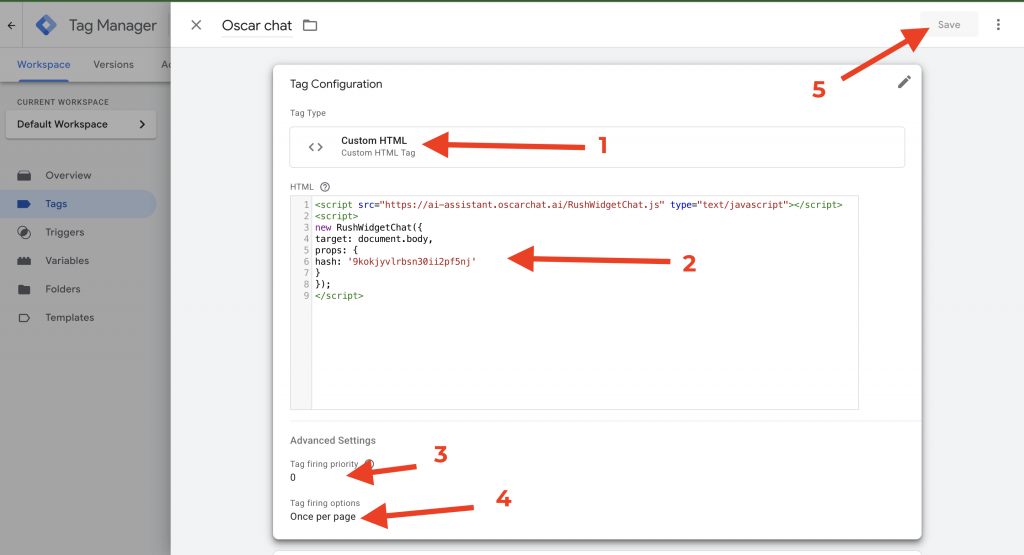
- Select Custom HTML.

Step 3: paste the Oscar Chat code (footer load)
Paste this script into the Custom HTML field. Replace YOUR_WIDGET_HASH_HERE with your real hash.
<script src="https://ai-assistant.oscarchat.ai/RushWidgetChat.js" type="text/javascript"></script>
<script>
  new RushWidgetChat({
    target: document.body,
    props: {
      hash: 'YOUR_WIDGET_HASH_HERE'
    }
  });
</script>
Step 4: advanced settings
- Tag firing priority: 0
- Tag firing options: Once per page
Step 5: add a trigger
- Click Triggering.
- Select All Pages.
Step 6: save and publish
- Click Save.
- Click Submit.
- Publish the container version.
How to verify the installation
- Open your website in an incognito window.
- Confirm the Oscar Chat widget button appears.
- Use GTM Preview mode to confirm the tag fires on page load.
- Open DevTools Console and confirm there are no JavaScript errors.
Troubleshooting
Chat does not appear
- Confirm your widget hash is correct.
- Make sure the tag is published (not only saved).
- Verify GTM is installed on your site.
Chat loads twice
- Set Tag firing options to Once per page.
- Make sure the script is not installed in your site code and GTM at the same time.
Next steps
After installation, you can customize greetings, lead capture flows, and widget behavior inside Oscar Chat. For advanced setups, you can restrict the GTM trigger to specific pages or audiences.


![Does Adding a Chat or Popup Slow Down a Website? [2025 Guide]](https://www.oscarchat.ai/wp-content/uploads/2025/10/does-adding-a-chat-or-popup-slow-down-a-website-2025-guide-300x296.png "Performance & Speed: Why Adding Chat or Popups to Your Footer Won’t Slow Down Your Website")