
This guide walks through the whole process: choosing the approach, installing the widget, training the bot properly, placing it where it converts, and testing before you trust it with real customers.
Step 1: Choose your approach — plugin or embed script
There are two standard ways to add a chatbot to WordPress without code:
Official plugin. Some platforms offer a WordPress plugin. You install it from the WordPress plugin directory or upload the plugin file, activate it, connect your account, and the widget appears on your site. Plugins are convenient and usually handle updates automatically.
Embed script. Most platforms give you a small JavaScript snippet. You paste it into your site’s header or footer — via your theme settings, a “header/footer scripts” plugin, or a tag manager — and the chat widget loads on every page. This works with any theme and any page builder.
Either route is genuinely no-code. The script approach is the most universal, so ask for it if your chosen platform doesn’t list a WordPress plugin. What matters more than the install method is what happens next: training.
Step 2: Create your chatbot account and widget
Sign up with your chosen platform and create a new chat widget for your website. Typically you’ll:
- Name the widget and connect your website’s domain.
- Set the basics: welcome message, bot name, and the colour scheme to match your branding.
- Choose the languages your customers will use — if you sell internationally, multilingual support matters from day one. Oscar Chat, for instance, answers in 50+ languages.
- Copy the embed snippet (or install the plugin and connect your account).
Don’t publish yet. An untrained bot answering live customers with generic responses does more harm than good. Publish after training and testing.
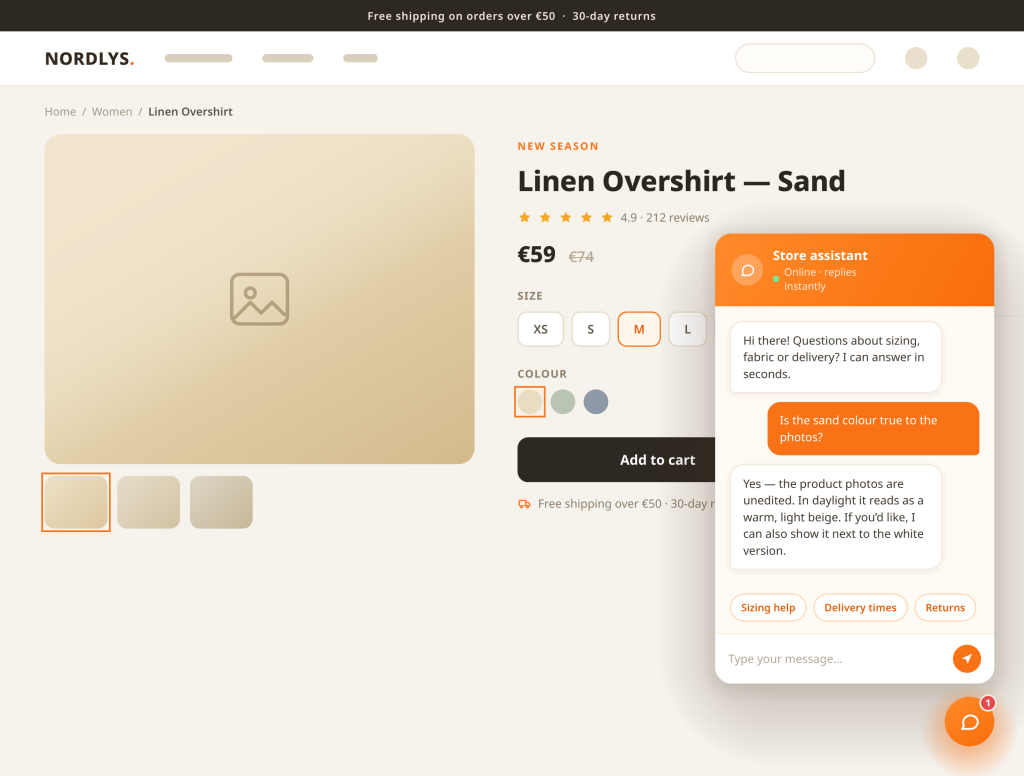
Step 3: Train the bot on your website content
This is the step that separates a useful chatbot from a decorative one. A modern AI chatbot learns from your content rather than generic internet knowledge:
- Website crawling: point the bot at your website and let it crawl your pages — product pages, FAQ, shipping, returns, sizing, warranty. The bot builds its knowledge from what’s already published.
- Knowledge base additions: paste in documents or text that isn’t on the site — internal policies, a detailed FAQ, a product manual.
- Q&A pairs: for questions with one exact right answer (“Do you ship to Canada?”), add a direct question-and-answer pair so the bot never paraphrases wrongly.
The quality rule is simple: if the answer isn’t written down anywhere, the bot can’t reliably know it. Gaps the bot exposes during testing usually mean a page or FAQ entry you should write for humans anyway. Our detailed walkthrough of this process is here: how to train your AI chatbot.
Step 4: Test like a customer
Before publishing, interrogate your own bot:
- Ask your ten most common customer questions in your own words — not the wording from your FAQ.
- Ask about edge cases: refunds after 30 days, gift returns, a product that’s out of stock.
- Ask in another language if you enabled multilingual answering.
- Ask something your bot can’t know. Does it gracefully offer to take a message or hand off, instead of inventing an answer?
Fix weak answers by improving the underlying content or adding a Q&A pair, then re-ask. Treat this like onboarding a new support hire: the bot gets better every time you correct it.
Step 5: Place the widget and publish
Where the chat lives affects whether people use it:
- Site-wide widget (standard): the chat bubble on every page answers questions at the moment they arise. This is the right default for product and policy questions.
- Product pages matter most: hesitation happens where the buy button is. Make sure the widget is prominent on product pages, not just the homepage.
- Don’t hide behind it: keep contact options visible. A chatbot that blocks access to email or support feels like a wall, not help.
Once you’re happy, publish the widget and watch the first conversations closely for a week. Early chats are your best training data.
WooCommerce-specific tips
WooCommerce stores have a few extra considerations:
- Product knowledge changes: new products, seasonal stock, changed prices. When your catalogue changes a lot, re-crawl or refresh the bot’s training so it doesn’t quote last season’s policy.
- Order questions: customers will ask “where is my order?” Decide what the bot should do — point to the tracking page, take details for the team, or connect to your support flow if your platform supports it.
- Pair chat with lead capture: not every visitor wants to chat. A free popup or form builder lets you collect emails from browsers who leave silently. Oscar Chat bundles a free Popup Builder and free Form Builder with its chat. If you’re comparing popup tools specifically, see our breakdown of popup builders comparison.
Adding Oscar Chat to WordPress, specifically
Oscar Chat adds a few things worth knowing upfront: the AI chat has a free plan to start and paid plans as you grow — current prices are on the pricing page; it answers in 50+ languages; and it integrates with Shopify, Klaviyo, Salesforce and Zoho. Sites managed by agencies can organise multiple sites and teams into workspaces. If you’re still deciding between platforms, these comparisons may help: Oscar Chat vs Chatbase, Oscar Chat vs HubSpot, Oscar Chat vs Tawk.to, Oscar Chat vs Intercom.
The Oscar Chat flow follows the same pattern:
- Create an Oscar Chat account and a new chat widget for your site.
- Train it on your website content — crawl your pages and add knowledge base material or Q&A pairs for anything not yet published.
- Test it with your real customer questions and correct weak answers.
- Add the widget to WordPress via the embed snippet (or plugin route if available), then publish.
After launch: the weekly 15-minute habit
A chatbot is not a set-and-forget install. The sites that get real value from one spend a few minutes weekly on upkeep:
- Read real conversations. Scan the latest chats for questions the bot fumbled, answered vaguely, or escaped with a handoff. Each miss is a training gap with a known fix.
- Fix the source, not just the symptom. If the bot gave an outdated answer, update the underlying page or Q&A pair. Patching content improves the bot and the website at the same time.
- Check the unanswered pile. Questions the bot couldn’t answer are a free research report: they’re exactly the FAQ entries, product-page details and policy clarifications your customers are asking for.
- Re-train after changes. Launched a sale, changed shipping terms, added a product line? Re-crawl or update the knowledge base the same day, not next month.
Fifteen minutes a week keeps answer quality climbing. Skipping it for a quarter is how a good bot quietly becomes a liability quoting last season’s returns policy.
Common mistakes to avoid
| Mistake | Why it hurts | Do this instead |
|---|---|---|
| Using default answers | Generic copy makes the widget feel like a gimmick. | Write 5–10 real Q&A pairs in your brand’s voice. |
| Training on an incomplete site | The AI will guess, or miss key policies. | Point it at your pages, shipping, returns and contact pages first. |
| Skipping live-chat handover | Hard questions hit a dead end. | Enable handover with a clear fallback message. |
| Setting an aggressive welcome popup | An instant popup on every page annoys visitors. | Delay it 20–30 seconds, or show it on exit-intent. |
| Never reviewing conversations | You miss the questions the bot answers badly. | Check transcripts weekly for the first month. |
7-Day Pro Trial for Every New Account
For your first 7 days, you are automatically on the Pro plan.
Start Free with Pro ↗FAQ
Do I really need zero code to add a chatbot to WordPress?
Yes — with a plugin or a pasted embed snippet, no code changes are required. Both methods are standard features of WordPress (plugin installation and header/footer script fields or plugins), so a normal site admin can do it without a developer.
Will a chatbot slow down my WordPress site?
A properly built chat widget loads asynchronously, after your page content, so it shouldn’t block rendering. Avoid stacking multiple heavy widgets (chat plus several popup and review tools) without checking your page speed afterwards.
Does this work with WooCommerce?
Yes. The widget sits on top of your store pages like any other page. Just keep the bot’s training current when products, prices or policies change, and decide in advance how it should handle order-status questions.
How does the chatbot learn my products and policies?
By training on your content: crawling your website pages, plus any knowledge base text or Q&A pairs you add. The better your published product and policy pages are, the better the answers.
What does a chatbot for WordPress cost?
Pricing models vary: some tools charge per message or credit, others a flat fee per seat. Our full breakdown of AI chatbot costs shows how each model behaves at different volumes. Oscar Chat’s AI chat has a free plan to start and paid plans as you grow, and its popup and form builders are free.
What if the bot doesn’t know an answer?
A good setup makes it admit that, take the visitor’s contact details or hand off to you, instead of guessing. Check this behaviour in testing — bluffing is the one failure mode you can’t accept.